
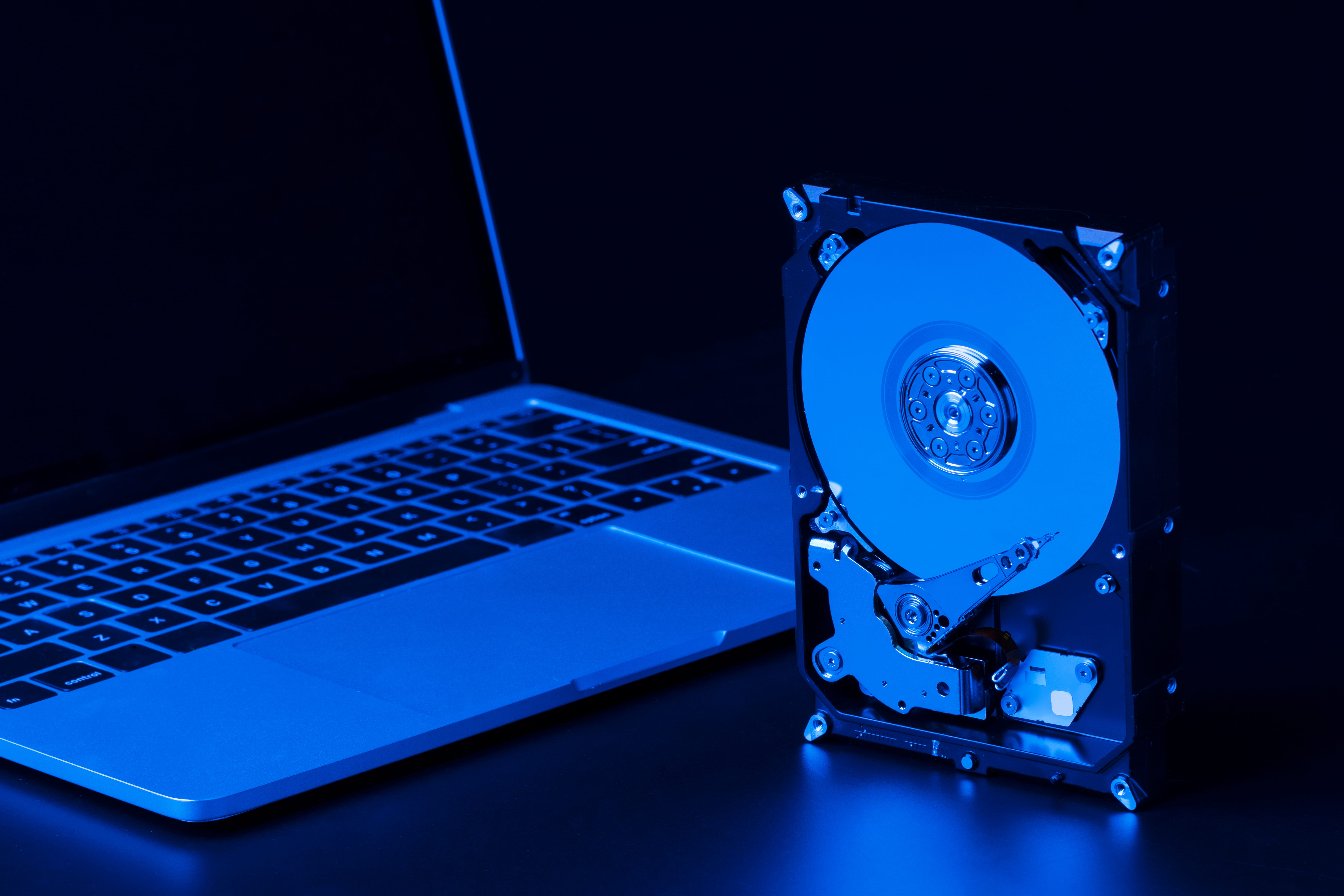
Hard drives rarely fail at a good time, but they often provide warning signs before complete failure. The problem is that many users ignore those signs until files become inaccessible. Slow performance, strange noises, disappearing folders, and repeated errors may seem like minor annoyances at first. In reality, they can be early indicators that a drive needs attention.
Knowing when to back up, when to scan, and when to stop using the drive can prevent a small problem from becoming a permanent data loss event.
Slow Access and Freezing
A failing hard drive may take longer to open folders, copy files, or start Windows. Applications may freeze while reading data. The computer may seem slow even when the processor and memory are not heavily used.
Slow access does not always mean the drive is failing. It can also result from low storage space, background updates, or malware. But if slowness is paired with file errors or unusual sounds, treat it seriously.
Clicking or Grinding Sounds
Mechanical hard drives should not click repeatedly, grind, or make scraping sounds. These noises may indicate read/write head problems, spindle issues, or internal mechanical damage. If a drive starts making unusual sounds, stop using it.
This is not the right time for repeated software scans. A physically failing drive may get worse the longer it runs. If the data is valuable, professional recovery may be safer.
Files Disappear or Become Corrupted
When documents refuse to open, photos display incorrectly, or folders vanish, the issue may be file system corruption or bad sectors. A single corrupted file may not be alarming, but repeated corruption is a warning sign.
If you can still access the drive, copy important files to another storage device immediately. Do not wait until the drive becomes completely unreadable.
Windows Disk Warnings
Windows may display messages about disk errors, automatic repair, or scanning and fixing a drive. These warnings should not be ignored. They may indicate file system problems, bad sectors, or unsafe shutdown damage.
Before running repair operations on valuable data, make a backup if possible. Repair tools can modify the file system, and while they may fix some problems, they are not a substitute for recovery.
Drive Disappears Randomly
If a drive appears and disappears, disconnects during file transfer, or changes drive letters unexpectedly, check cables and ports first. For external drives, a bad USB cable or weak power supply can cause problems. For internal drives, loose SATA cables or power connectors may be responsible.
If connections are fine and the issue continues, the drive itself may be unstable.
When Recovery Software Helps
If the drive is detected and the problem appears logical, a hard drive recovery tool can help recover files from deleted folders, formatted partitions, RAW drives, and file system corruption. Software recovery is most useful when the device is physically stable but Windows cannot access the data normally.
Install recovery software on a healthy drive and save recovered files to a separate destination.
When to Stop Immediately
Stop using the drive if it clicks, smells burnt, overheats, fails to spin, is not detected in BIOS, or has suffered physical impact or water damage. These symptoms suggest hardware failure. Continued use may reduce recovery chances.
For business-critical data, do not experiment with multiple tools on a physically failing drive. Get expert help.
Build a Replacement Plan Before Failure
If a drive is showing warning signs but still works, do not wait for it to fail completely. Copy important files first, then plan a replacement. For a desktop, that may mean installing a new internal drive and cloning or reinstalling Windows. For a laptop, it may mean moving data to an external drive before service.
Users often delay replacement because the drive still works “most of the time.” That is a dangerous stage. Intermittent failures usually become permanent failures. The cost of a new drive is usually much lower than the cost of lost work or professional recovery.
Treat warning signs as an opportunity. If you can still access the data, you are ahead of the problem.
SMART Warnings and Drive Health
Many drives track health information through SMART data. While SMART is not perfect, warnings about reallocated sectors, pending sectors, or read errors should be taken seriously. If a drive health tool reports problems, back up important data immediately.
Do not wait for a dramatic failure. Many drives fail gradually. The safest time to recover or copy files is while the drive is still readable.
Business Warning Signs
In an office, warning signs may appear as repeated complaints: shared files open slowly, one workstation freezes, or an external backup drive disconnects often. These small issues should be investigated before they become larger data loss incidents.
Do Not Ignore Backup Drive Failure
Many users watch their main computer carefully but ignore the health of backup drives. An external drive that takes too long to copy files, disconnects randomly, or makes unusual sounds should be replaced. A failing backup drive creates a false sense of safety.
Test backups periodically by restoring sample files. If the backup drive is unreliable, fix that issue before your main drive fails.
Although Windows updates are designed to improve system performance and security, they can occasionally lead to missing files, inaccessible folders, or unexpected drive issues. In some situations, users may need to recover data after windows update if important documents or other files appear to have disappeared. Before making further changes to the system, it is a good idea to check backups and, if necessary, use trusted recovery software to scan the affected drive. Acting promptly can improve the chances of restoring valuable data without causing additional loss.
Final Thoughts
Hard drive failure signs should be treated as warnings, not inconveniences. Slow access, strange sounds, corruption, disappearing drives, and disk errors all deserve attention. The right response depends on whether the issue is logical or physical.
Amrev Data Recovery Software helps recover deleted, formatted, and lost files from hard drives, external disks, SSDs, USB drives, memory cards, and other storage devices. With deep scanning and file preview, it provides a practical option when data loss occurs on drives that are still physically accessible.